

Introduction
Deploying an application is an important part of the modern software development lifecycle. Developers may successfully build an application on their local machines, but making it available to users requires a reliable deployment environment, appropriate security settings, monitoring and scalable infrastructure.
This is where Docker and Amazon Web Services (AWS) can work together. Docker packages an application and its dependencies into a container image, while AWS provides services to store that image, run containers and manage application infrastructure.
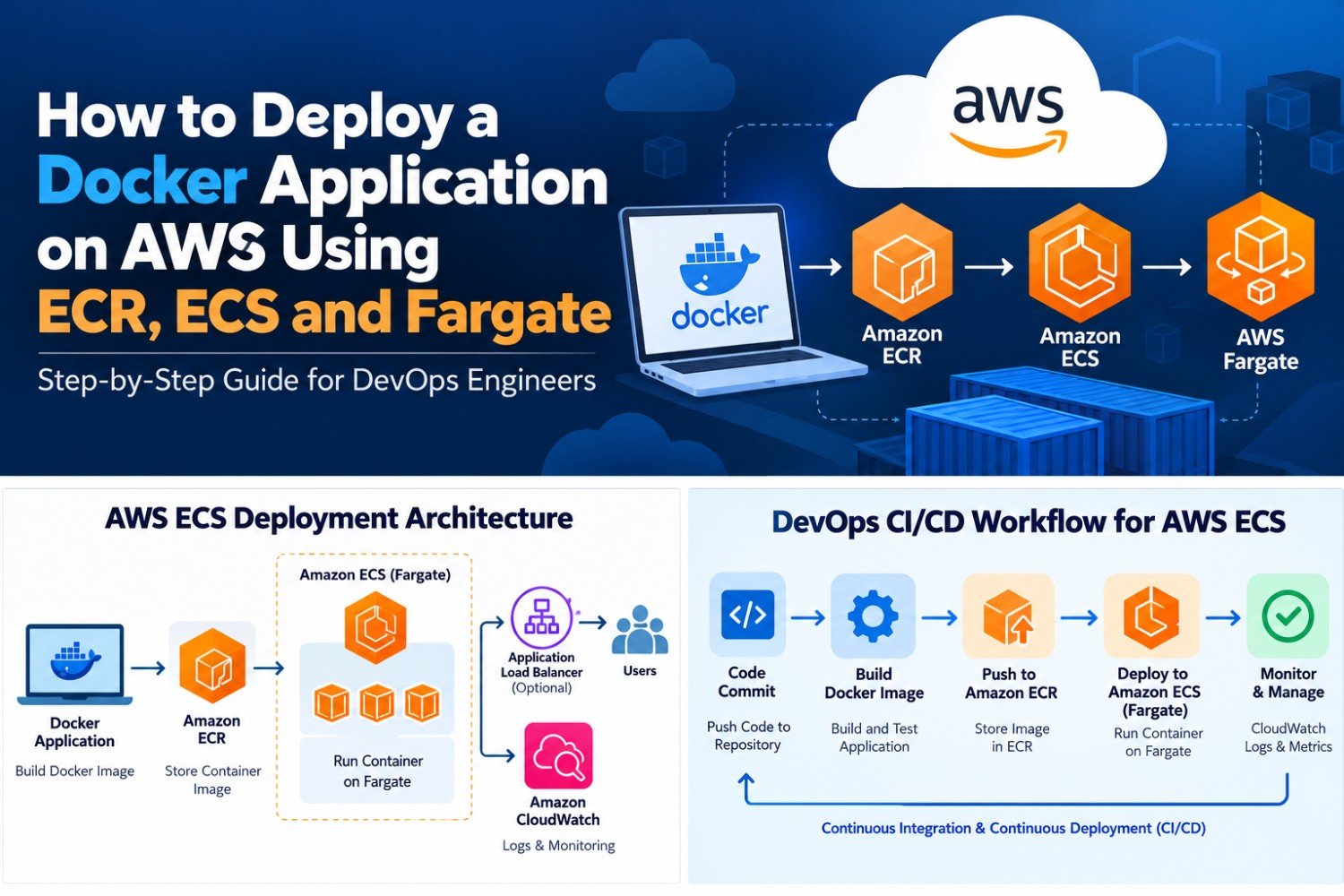
In this practical guide, you will learn how to deploy a Docker application on AWS ECS using Amazon Elastic Container Registry (ECR), Amazon Elastic Container Service (ECS) and AWS Fargate. We will cover the deployment workflow, essential configurations, application testing, common errors, security considerations and cost management.
Whether you are learning cloud computing or building your DevOps skills, this tutorial will help you understand how the main services fit together in a real deployment workflow.
What Is Docker Deployment on AWS?
Docker deployment on AWS involves packaging an application into a container image and running that image on AWS infrastructure. Instead of manually configuring every application dependency on a server, teams can define the application environment through a Dockerfile and deploy the resulting image to a container platform.
For this tutorial, we will use three AWS services.
1. Docker: Package the Application
Docker allows developers to package application code, runtime dependencies and configuration instructions into a container image. This makes it easier to test and deploy applications consistently across environments.
2. Amazon ECR: Store the Container Image
Amazon Elastic Container Registry is a managed container image registry. It stores images so that services such as ECS can retrieve the correct version when launching application containers.
3. Amazon ECS with AWS Fargate: Run the Application
Amazon Elastic Container Service manages container workloads. AWS Fargate provides a serverless compute option for eligible ECS tasks, reducing the need to provision and maintain EC2 instances for those tasks.
With this setup, Docker packages the application, ECR stores the image, ECS manages the container service, and Fargate supplies the compute capacity.
For service-specific details, consult the official Amazon ECR documentation, Amazon ECS documentation and ECS on AWS Fargate guide.
Understanding the AWS ECS Deployment Architecture
Before running commands, understand how the application moves from your computer to the AWS environment.
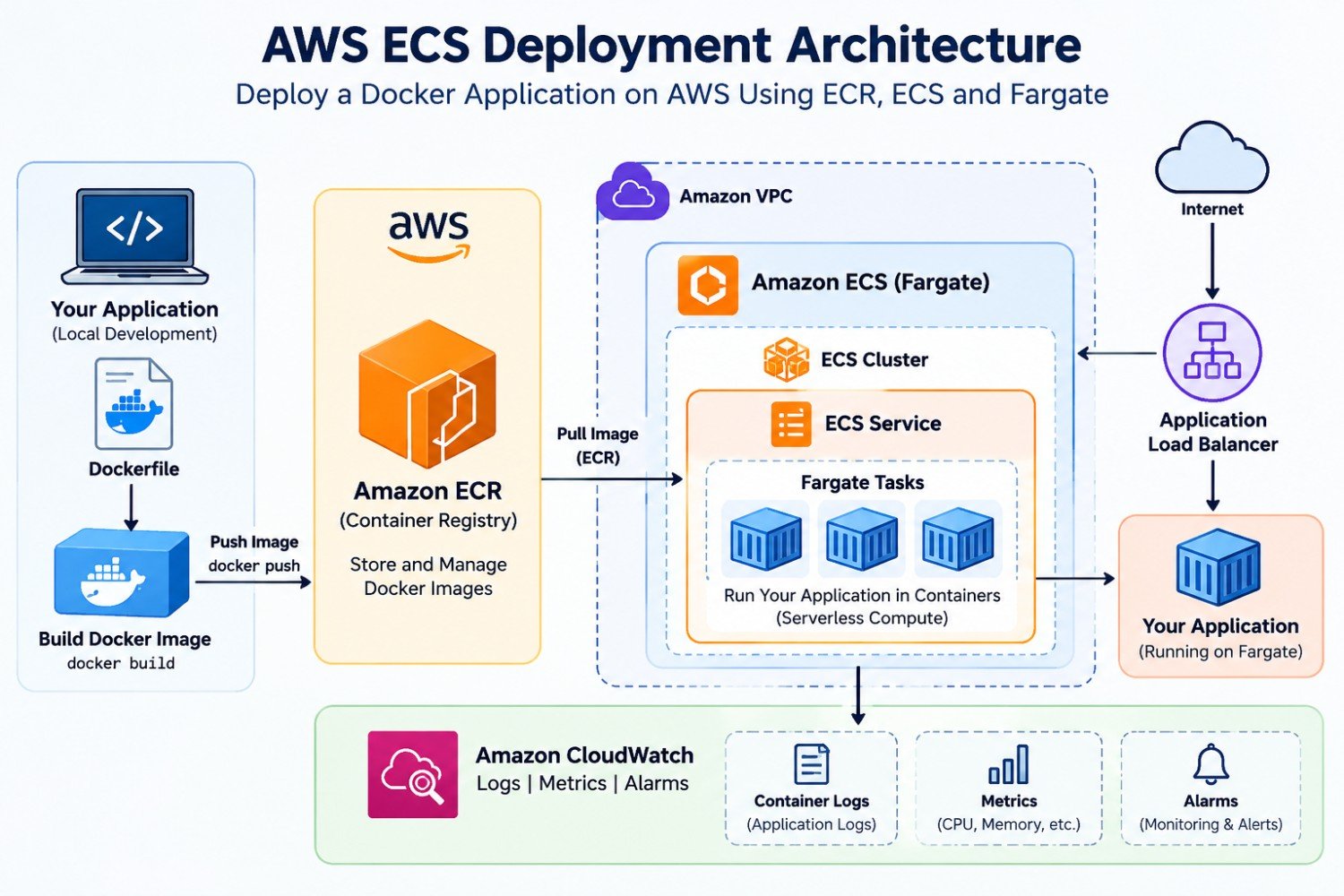
- Application development: Write and test the application locally.
- Docker image creation: Build the application image using a Dockerfile.
- Image storage: Push the image to an Amazon ECR repository.
- ECS configuration: Create a task definition that describes the container and its runtime requirements.
- Container deployment: Configure an ECS service to run and maintain the desired number of tasks using Fargate.
- Application access: Configure networking and, when required, a load balancer to route traffic to the application.
- Monitoring: Use CloudWatch logs and metrics to investigate application behaviour.
The exact networking design depends on whether the application is public or private. For example, a production web application commonly uses an Application Load Balancer and private application subnets. A controlled learning environment can use a simpler configuration, provided its security limitations are understood.
Prerequisites for Deploying a Docker Application on AWS ECS
Prepare the following tools and resources before starting the deployment.
- An active AWS account with permission to create and manage the required resources.
- Docker installed and working on your development machine.
- AWS CLI installed and configured with an appropriate identity.
- A sample application that can run inside a Docker container.
- Basic understanding of Docker images, ports, Linux commands and cloud networking.
- An AWS Region selected for the deployment.
You should also understand the difference between an IAM identity used by your CLI and the IAM roles used by ECS. Use short-lived credentials or an appropriate role-based authentication method where possible. Do not place AWS access keys inside a Dockerfile, container image or source-code repository.
Check Your Tools
Run the following commands in your terminal to check the installed tools.
docker --version
aws --version
aws sts get-caller-identity
The final command shows the AWS identity being used by the CLI. If it fails, check your authentication and permissions before continuing.
Set the AWS Region and choose a unique image repository name for your project. In the following examples, replace the sample values with your own settings.
export AWS_REGION=ap-south-1
export ECR_REPOSITORY=my-docker-app
export IMAGE_TAG=1.0.0

aws configure get region
These shell examples use Bash. If you are using Windows PowerShell, adapt the environment-variable syntax accordingly.
Step 1: Create a Sample Docker Application
For a straightforward demonstration, create a small web application that listens on port 8080. You can use your own application instead, but make sure its listening port, startup command and dependencies match the Docker configuration.
Create a project directory and add a file named app.py.
from http.server import BaseHTTPRequestHandler, HTTPServer

class Handler(BaseHTTPRequestHandler):
    def do_GET(self):
        body = b"Hello from AWS ECS and Fargate!"

        self.send_response(200)
        self.send_header("Content-Type", "text/plain")
        self.send_header("Content-Length", str(len(body)))
        self.end_headers()
        self.wfile.write(body)

server = HTTPServer(("0.0.0.0", 8080), Handler)
server.serve_forever()
This sample uses Python’s built-in HTTP server for demonstration purposes. It is not intended as a production web server.
Create the Dockerfile
In the same directory, create a file named Dockerfile.
FROM python:3.12-slim

WORKDIR /app

COPY app.py .

EXPOSE 8080

CMD ["python", "app.py"]
The Dockerfile specifies the base image, application directory, copied source file, documented port and startup command. For production workloads, pin and update base images deliberately, run as a non-root user where practical, and scan images for vulnerabilities.
Build and Test the Image Locally
docker build -t my-docker-app:1.0.0 .

docker run --rm -d \
  --name my-docker-app-test \
  -p 8080:8080 \
  my-docker-app:1.0.0
Open http://localhost:8080 in your browser. You should see the sample response.
Stop the test container when finished.
docker stop my-docker-app-testTesting locally first helps identify Dockerfile errors and application startup problems before introducing AWS networking and permissions into the troubleshooting process.
Step 2: Create an Amazon ECR Repository
After building the image, create an Amazon ECR repository to store it. The repository provides a registry location that ECS can use to retrieve the image during deployment.
Run the following command:
aws ecr create-repository \
  --repository-name "$ECR_REPOSITORY" \
  --region "$AWS_REGION"
Save the repository URI from the command output. You can retrieve it later with:
aws ecr describe-repositories \
  --repository-names "$ECR_REPOSITORY" \
  --region "$AWS_REGION" \
  --query 'repositories[0].repositoryUri' \
  --output text
Store the result in a variable for the remaining commands.
export AWS_ACCOUNT_ID=$(aws sts get-caller-identity \
  --query Account --output text)

export ECR_URI="${AWS_ACCOUNT_ID}.dkr.ecr.${AWS_REGION}.amazonaws.com/${ECR_REPOSITORY}"
Confirm that the selected Region matches the Region where the repository was created. The AWS account and Region in the image URI must be correct for the image to be retrieved successfully.
Step 3: Push the Docker Image to Amazon ECR
Amazon ECR requires authentication before you can push an image. Use the AWS CLI to obtain a registry login token and authenticate Docker.
aws ecr get-login-password --region "$AWS_REGION" \
  | docker login \
    --username AWS \
    --password-stdin \
    "${AWS_ACCOUNT_ID}.dkr.ecr.${AWS_REGION}.amazonaws.com"
Tag the local image with the ECR repository URI.
docker tag my-docker-app:1.0.0 \
  "${ECR_URI}:${IMAGE_TAG}"
Push the image to ECR.
docker push "${ECR_URI}:${IMAGE_TAG}"Verify that the image exists in the repository.
aws ecr describe-images \
  --repository-name "$ECR_REPOSITORY" \
  --region "$AWS_REGION"
At this stage, the image is available in ECR. The next step is to configure ECS so that it knows which image to run, how much CPU and memory to allocate, which port the application uses and how the container should be monitored.
For production workflows, consider immutable image tags or image digests, lifecycle policies, vulnerability scanning and controlled permissions for pushing and pulling images.
Step 4: Create an ECS Cluster
An Amazon ECS cluster groups ECS tasks and services logically. When using Fargate, you do not need to create an EC2 instance fleet just to provide the container compute capacity.
Create a cluster with the following command:
export ECS_CLUSTER=my-docker-app-cluster

aws ecs create-cluster \
  --cluster-name "$ECS_CLUSTER" \
  --region "$AWS_REGION"
For a learning project, you can use the default ECS cluster configuration unless your requirements call for additional settings. Production environments may need more detailed decisions about observability, capacity providers, security and operational governance.
Understand the ECS Task Definition
An ECS task definition is a blueprint for running a container. It describes the container image, resource allocation, port mappings, logging, environment configuration and relevant IAM roles.
Before registering the task definition, prepare an ECS task execution role. This role commonly allows the ECS agent to pull images from ECR and publish logs to CloudWatch. If your application needs access to AWS services, configure a separate task role with only the permissions required by the application.
Follow the official ECS task execution IAM role guide to configure the role correctly.
Step 5: Register an ECS Task Definition
Create a file named task-definition.json. Replace the account ID, Region and execution role ARN with values from your AWS environment.
{
  "family": "my-docker-app",
  "networkMode": "awsvpc",
  "requiresCompatibilities": ["FARGATE"],
  "cpu": "256",
  "memory": "512",
  "executionRoleArn": "arn:aws:iam::YOUR_ACCOUNT_ID:role/ecsTaskExecutionRole",
  "containerDefinitions": [
    {
      "name": "my-docker-app",
      "image": "YOUR_ECR_IMAGE_URI:1.0.0",
      "essential": true,
      "portMappings": [
        {
          "containerPort": 8080,
          "protocol": "tcp"
        }
      ],
      "logConfiguration": {
        "logDriver": "awslogs",
        "options": {
          "awslogs-group": "/ecs/my-docker-app",
          "awslogs-region": "ap-south-1",
          "awslogs-stream-prefix": "ecs"
        }
      }
    }
  ]
}
Replace the placeholder image URI with the ECR image URI created in Step 2. Also replace the example Region and role ARN. The execution role must exist and have the required permissions.
Create the CloudWatch log group before registering the task definition, or configure the logging options to create it where appropriate.
aws logs create-log-group \
  --log-group-name /ecs/my-docker-app \
  --region "$AWS_REGION"
Register the task definition:
aws ecs register-task-definition \
  --cli-input-json file://task-definition.json \
  --region "$AWS_REGION"
The CPU and memory values shown are an example configuration for a small demonstration. Select compatible CPU and memory values according to the Fargate task sizing options and your application’s actual requirements.
Step 6: Configure Networking for ECS Fargate
Networking determines whether the container can retrieve its image, communicate with required AWS services and receive application traffic. A working task definition alone does not guarantee that the application will be reachable.
For Fargate tasks using the awsvpc network mode, ECS assigns a network interface to each task. You must specify subnets and security groups when creating the service.
Choose the Appropriate Network Design
- Public web application: A common production pattern uses an internet-facing Application Load Balancer with application tasks in private subnets.
- Private application: Run tasks in private subnets and provide access through an internal load balancer, VPN or other approved network path.
- Learning environment: A public subnet with a public IP may be used for a temporary demonstration if routing and security rules are configured correctly.
If tasks are placed in private subnets, make sure they have a valid path to required AWS endpoints. Depending on the architecture, this may involve NAT gateways or VPC endpoints for services such as ECR, S3 and CloudWatch Logs.
For a quick demonstration, you may allow inbound TCP traffic on port 8080 from your own IP address in the task security group and assign a public IP to the task in a suitable public subnet. Do not expose this sample configuration broadly in a production environment.
For production, prefer a load balancer, restrict task ingress to the load balancer security group and keep application tasks in private subnets when the architecture permits it.
Step 7: Create an ECS Service and Deploy the Application
An ECS service helps maintain the desired number of running tasks and manages deployments according to its configuration.
Before creating the service, identify the VPC, subnet IDs and security group ID that you intend to use. These values must belong to the selected Region and be appropriate for your networking design.
Set the following example variables using your actual AWS resource IDs:
export ECS_SERVICE=my-docker-app-service
export TASK_FAMILY=my-docker-app

export SUBNETS=subnet-REPLACE_ME
export SECURITY_GROUP=sg-REPLACE_ME
The following example assumes that the selected subnet and security group are configured for a temporary public demonstration, with appropriate routing and restricted inbound access to port 8080.
aws ecs create-service \
  --cluster "$ECS_CLUSTER" \
  --service-name "$ECS_SERVICE" \
  --task-definition "$TASK_FAMILY" \
  --desired-count 1 \
  --launch-type FARGATE \
  --network-configuration \
  "awsvpcConfiguration={subnets=[$SUBNETS],securityGroups=[$SECURITY_GROUP],assignPublicIp=ENABLED}" \
  --region "$AWS_REGION"
For multiple subnets, supply a comma-separated list of subnet IDs in the AWS CLI parameter format required by the command. For a production architecture using an Application Load Balancer, configure the service with the appropriate load balancer target group instead of relying on direct public access to the task.
Check the Deployment Status
aws ecs describe-services \
  --cluster "$ECS_CLUSTER" \
  --services "$ECS_SERVICE" \
  --region "$AWS_REGION"
Wait until the service reports a stable deployment and the desired task is running. If the task repeatedly stops, inspect the stopped reason, service events, IAM permissions, image URI, logging configuration and networking.
A successful service creation command does not necessarily mean the application is healthy. Always verify the task state and test the actual application endpoint.
Step 8: Access and Test the Deployed Application
Once the ECS task is running, retrieve its public IP if you used the temporary public-access configuration. The following example finds a running task and queries its network interface.
export TASK_ARN=$(aws ecs list-tasks \
  --cluster "$ECS_CLUSTER" \
  --service-name "$ECS_SERVICE" \
  --desired-status RUNNING \
  --region "$AWS_REGION" \
  --query 'taskArns[0]' \
  --output text)

aws ecs describe-tasks \
  --cluster "$ECS_CLUSTER" \
  --tasks "$TASK_ARN" \
  --region "$AWS_REGION"
Find the task’s Elastic Network Interface ID in the response, then query its public IP if one has been assigned.
aws ec2 describe-network-interfaces \
  --network-interface-ids eni-REPLACE_ME \
  --region "$AWS_REGION" \
  --query 'NetworkInterfaces[0].Association.PublicIp' \
  --output text
Replace the interface placeholder with the actual network interface ID. If the task has no public IP, use the appropriate load balancer address or private access path instead.
Test the endpoint from a machine that can reach it:
curl http://YOUR_APPLICATION_ADDRESS:8080You should receive the sample response if the container is running and the networking rules permit access. If you use an Application Load Balancer, test the configured listener and application URL instead.
Remember that a public IP may change when a task is replaced. Do not treat a task’s temporary public IP as a stable production endpoint.
Step 9: Monitor the Application with Amazon CloudWatch
Deployment is only one part of operating an application. Monitoring helps you understand whether the application is running correctly, whether resource limits are appropriate and why a task might fail.
Amazon CloudWatch can collect container logs and service metrics. ECS task logs configured with the awslogs driver can be viewed in the log group specified by the task definition.
Open CloudWatch Logs and navigate to:
/ecs/my-docker-appReview the logs for application startup messages, exceptions and unexpected behaviour. You can also inspect ECS service events and task stopped reasons when a deployment fails.
Recommended Monitoring Practices
- Monitor CPU and memory utilisation.
- Review task restarts, failed deployments and service events.
- Configure alarms for meaningful availability or resource thresholds.
- Send application errors and important operational events to logs.
- Avoid storing passwords, access keys, tokens or sensitive personal data in logs.
- Set log retention policies to control storage and ongoing costs.
As the application grows, you may also introduce health checks, dashboards, tracing and a structured alerting process. Select monitoring tools according to the reliability requirements of the workload.
Step 10: Secure Your AWS ECS Deployment
Security should be considered throughout the deployment process rather than added only after the application becomes publicly accessible.
Use Least-Privilege IAM Roles
Give the ECS task execution role only the permissions required to pull images and publish logs. If the application needs to access AWS services, use a separate task role with narrowly scoped permissions.
Restrict Network Access
Do not expose unnecessary ports. For a production web application, allow traffic to the application tasks from the intended load balancer security group rather than opening the application port to the entire internet.
Protect Secrets
Do not hard-code database passwords, API keys or other secrets into the Docker image or source code. Use an appropriate secrets-management service and grant access only to authorised workloads.
Scan and Update Container Images
Use image scanning, dependency updates and a controlled rebuild process to address known vulnerabilities. Rebuild images when base images or application dependencies require security updates.
Use HTTPS for Public Applications
Configure TLS using an appropriate certificate and load-balancing setup when the application is exposed publicly. Avoid transmitting credentials or sensitive information over unencrypted HTTP in production.
For detailed guidance, consult the Amazon ECS security best practices.
Common AWS ECS Deployment Errors and How to Troubleshoot Them
Several issues can prevent an ECS task from starting or an application from becoming reachable. Use the following checklist to narrow down the cause.
1. ECS Cannot Pull the ECR Image
Possible causes: An incorrect image URI or tag, missing execution-role permissions, authentication issues or a network path that cannot reach ECR and its dependencies.
What to check: Confirm the image exists in the correct Region, validate the task execution role and verify that the task has access to the required AWS endpoints.
2. The Task Stops Immediately
Possible causes: An application crash, incorrect startup command, missing dependency, incompatible CPU or memory settings or an incorrect container configuration.
What to check: Review the stopped reason, container exit code and CloudWatch logs. Test the same image locally to identify application-level failures.
3. The Application Cannot Be Reached
Possible causes: Incorrect port mapping, a restrictive security group, missing route configuration, an unassigned public IP or an incorrectly configured load balancer.
What to check: Confirm the application listens on the intended port, the target is healthy, and the network path permits traffic from the intended client.
4. CloudWatch Logs Are Missing
Possible causes: A missing log group, incorrect Region, invalid logging configuration or insufficient permissions for the execution role.
What to check: Review the task definition’s logging options and execution-role permissions, and inspect the task startup events.
5. The Service Does Not Reach a Stable State
Possible causes: Repeated task failures, failed health checks, unavailable capacity or misconfigured deployment settings.
What to check: Review ECS service events, running task details, target group health where applicable, and the application’s resource requirements.
Systematic troubleshooting is more effective than repeatedly changing configuration without checking the actual error messages.
AWS ECS and Fargate Cost Considerations
Before using ECS for a production workload, estimate the cost of running the application and its supporting infrastructure. The final amount depends on your AWS Region, CPU and memory allocation, task runtime, networking, logging, load balancing and other selected services.
Resources That May Contribute to Cost
- Fargate compute for running tasks.
- Additional storage where applicable.
- Application Load Balancer or other networking services.
- Data transfer and NAT gateway usage, where applicable.
- CloudWatch logs, metrics, dashboards and alarms.
- Amazon ECR image storage and applicable data transfer.
ECS does not have a separate standard orchestration fee for the Fargate launch model, but the supporting resources can still incur charges. A load balancer, NAT gateway or continuously running task can add costs even when application traffic is low.
How to Manage Costs
- Choose CPU and memory based on measured application requirements.
- Scale task capacity according to workload demand where appropriate.
- Set log retention policies and remove unnecessary diagnostic data.
- Use ECR lifecycle policies to remove obsolete images safely.
- Review data transfer and NAT gateway requirements.
- Delete demonstration resources when the exercise is complete.
Use the official Amazon ECS pricing page and the AWS Pricing Calculator to estimate current charges. Always model your own architecture instead of relying on a generic cost estimate.
How to Clean Up AWS Resources After the Tutorial
When you finish experimenting, remove temporary resources that are no longer needed. This is especially important when your environment includes continuously running tasks, load balancers, NAT gateways or other billable resources.
First, delete the ECS service. If it has one running task, scale the service down to zero or delete the service with the desired count set to zero as part of your cleanup process.
aws ecs update-service \
  --cluster "$ECS_CLUSTER" \
  --service "$ECS_SERVICE" \
  --desired-count 0 \
  --region "$AWS_REGION"
Wait for the running task to stop, then delete the service.
aws ecs delete-service \
  --cluster "$ECS_CLUSTER" \
  --service "$ECS_SERVICE" \
  --region "$AWS_REGION"
After confirming that the service no longer needs the task definition, deregister the relevant task definition revisions. Delete the ECS cluster once its services and tasks have been removed.
If you no longer need the container image, delete the ECR repository only after confirming that it contains no images you need to keep.
aws ecr delete-repository \
  --repository-name "$ECR_REPOSITORY" \
  --force \
  --region "$AWS_REGION"
The --force option deletes images in the repository. Use it only when you intend to remove those images permanently.
Also review and remove unused security groups, load balancers, target groups, log groups, NAT gateways, public IP allocations and any other resources created specifically for the exercise. Do not delete shared resources that belong to other applications.
How This Project Helps You Learn DevOps
Deploying a Docker application on AWS is a useful project because it connects multiple areas of cloud engineering in one workflow. You learn not only how to run a container but also how to configure permissions, manage images, troubleshoot networking and observe an application after deployment.
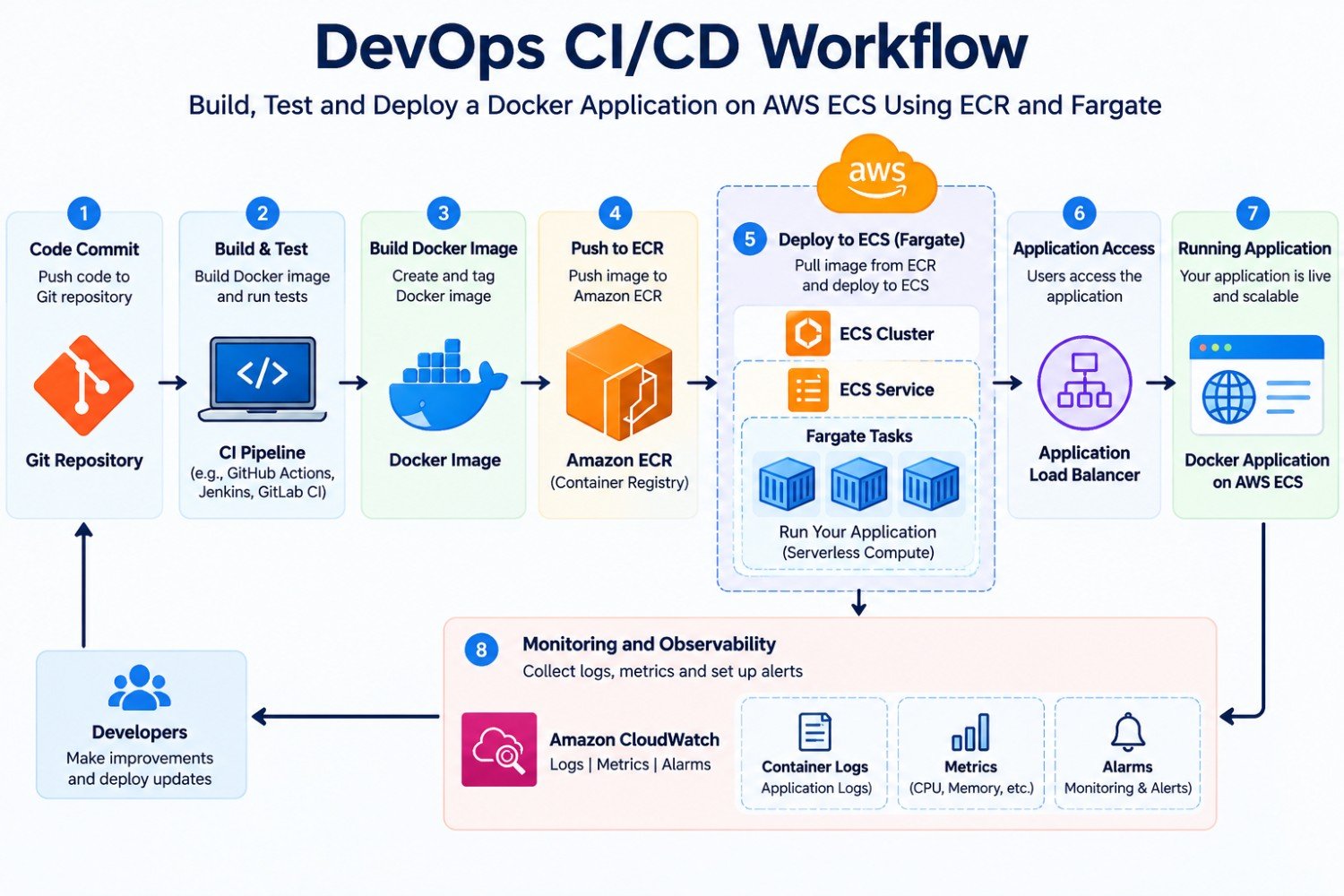
Once the basic deployment works, extend the project with additional DevOps practices.
- CI/CD automation: Build, test and publish images automatically after approved code changes.
- Infrastructure as Code: Use Terraform or another suitable tool to manage repeatable infrastructure configurations.
- Deployment strategy: Explore rolling deployments, health checks and rollback procedures.
- Security automation: Add image scanning and dependency checks to the build pipeline.
- Observability: Improve logs, metrics, alerts and application health reporting.
- Infrastructure comparison: Deploy a similar application on Kubernetes and EKS to understand when a different orchestration model is appropriate.
For a broader learning path, read the AI DevOps Engineer Roadmap 2026 and explore the Generative AI for DevOps guide.
Frequently Asked Questions
1. How do I deploy a Docker application on AWS ECS?
Build a Docker image, push it to Amazon ECR, register an ECS task definition, configure networking and create an ECS service. You can use Fargate to run eligible tasks without managing EC2 instances.
2. What is the difference between Amazon ECR and ECS?
Amazon ECR stores container images, while Amazon ECS manages the deployment and operation of container workloads. ECR supplies the image that ECS can use to launch a container.
3. Do I need EC2 instances to run ECS?
No. ECS supports Fargate as a serverless compute option for eligible workloads. ECS also supports EC2-based capacity when that model is more suitable for your requirements.
4. Is AWS Fargate the same as Amazon ECS?
No. ECS is a container orchestration service, while Fargate is a compute option for running containers. Fargate can be used with ECS and, for supported workloads, EKS.
5. Why is my ECS task unable to pull an ECR image?
Common causes include an incorrect image URI, a missing image tag, insufficient task execution-role permissions or networking problems that prevent access to ECR and its required dependencies.
6. How can I access an application running on ECS Fargate?
Application access depends on the networking configuration. You may use a load balancer, private network access or a public IP for a suitable temporary demonstration. Production systems commonly use a load balancer with appropriately restricted application tasks.
7. How can I view logs from an ECS container?
Configure the task definition’s logging settings, commonly using the CloudWatch Logs driver, and provide the necessary execution-role permissions. You can then review the configured log group in CloudWatch Logs.
8. Is Amazon ECS suitable for production applications?
Yes. ECS can support production workloads when the architecture includes appropriate security, availability, monitoring, deployment controls, backup or recovery procedures where needed, and cost management.
9. Can I automate ECS deployments with a CI/CD pipeline?
Yes. A CI/CD pipeline can build and test the application, publish a versioned image to ECR, update the ECS task definition and deploy the new revision using an appropriate release strategy.
10. What should I learn before starting an AWS ECS project?
Start with Docker fundamentals, basic Linux commands, AWS IAM, networking and container image registries. Then learn ECS task definitions, services, Fargate, logging and deployment troubleshooting.
Start Your AWS and DevOps Learning Journey With BinaryBrains
Want to understand cloud infrastructure, container deployment, automation and modern DevOps workflows through structured learning? Explore the AWS and DevOps learning options offered by BinaryBrains and choose a programme that matches your current skills and goals.
Explore the DevOps programme: AI-Powered Master Program in DevOps with AWS
Explore AWS training: AWS Training and Certification
Book a demo class: Book a Demo Class
For enquiries, contact BinaryBrains at +91-72497 56356 or email info@binarybrains.co.
Build your understanding of Docker, AWS and container deployment by practising with real configurations, troubleshooting errors and documenting your deployment decisions.
Comments are closed